Układy z panelem bocznym
Funkcje układu pozwalają wizualnie rozmieścić elementy wejściowe i wyjściowe w interfejsie użytkownika. Dobrze dobrany układ sprawia, że aplikacja Shiny wygląda atrakcyjniej i jest wygodniejsza w obsłudze.
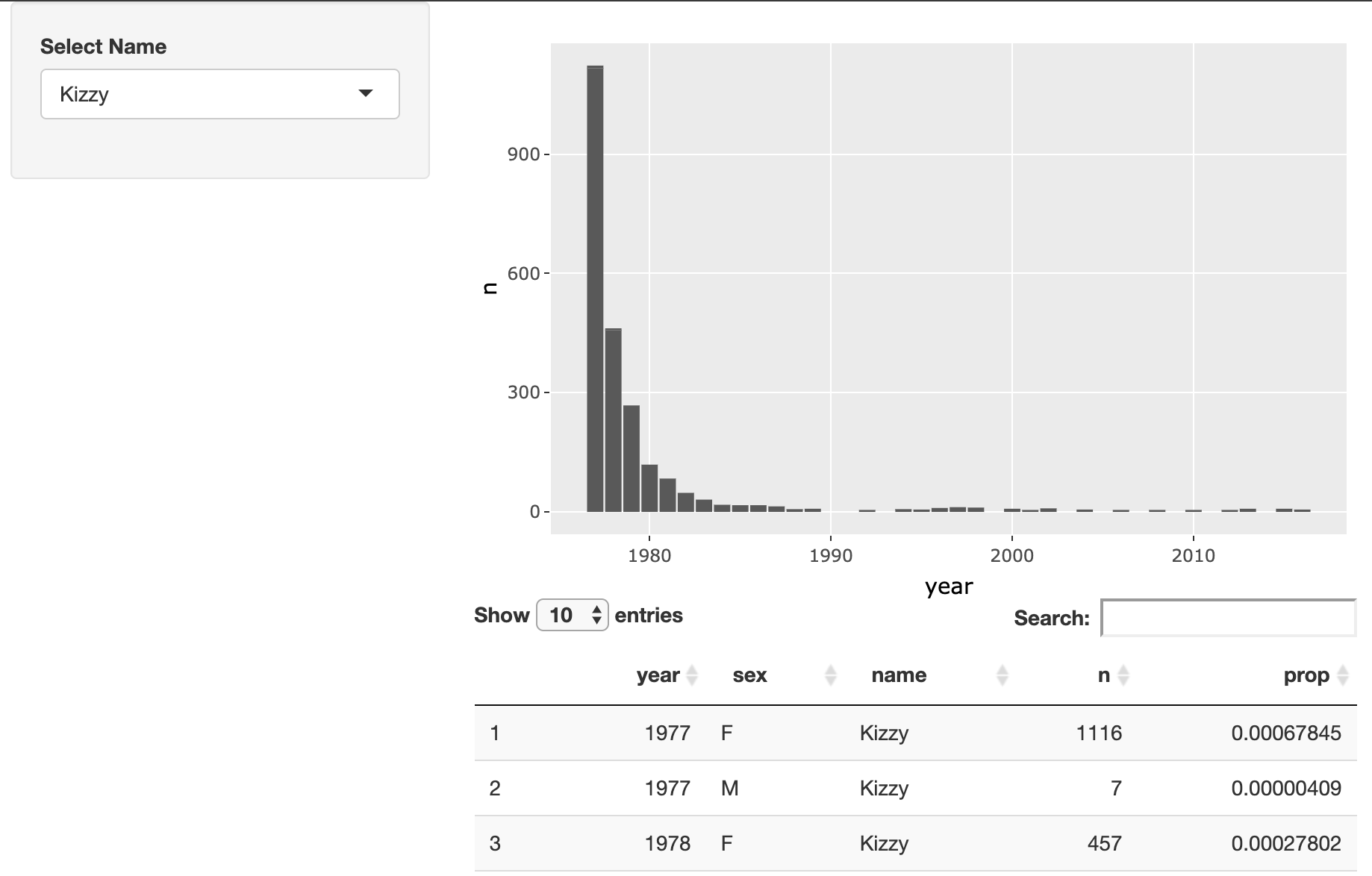
W tym ćwiczeniu zmodyfikujesz układ aplikacji Shiny, która pozwala użytkownikom eksplorować popularność modnych imion. Gotowa aplikacja powinna wyglądać tak:
To ćwiczenie jest częścią kursu
Tworzenie aplikacji internetowych z Shiny w R
Instrukcje do ćwiczenia
- Zmodyfikuj układ tej aplikacji tak, aby selektor imion znajdował się w panelu bocznym, a wykres i tabela pojawiały się po prawej stronie.
Interaktywne ćwiczenie praktyczne
Spróbuj tego ćwiczenia, uzupełniając ten przykładowy kod.
ui <- fluidPage(
  # MODIFY CODE BELOW: Wrap in a sidebarLayout
    # MODIFY CODE BELOW: Wrap in a sidebarPanel
    selectInput('name', 'Select Name', top_trendy_names$name),
    # MODIFY CODE BELOW: Wrap in a mainPanel
    plotly::plotlyOutput('plot_trendy_names'),
    DT::DTOutput('table_trendy_names')
)

# DO NOT MODIFY
server <- function(input, output, session){
  # Function to plot trends in a name
  plot_trends <- function(){
     babynames %>%
      filter(name == input$name) %>%
      ggplot(aes(x = year, y = n)) +
      geom_col()
  }
  output$plot_trendy_names <- plotly::renderPlotly({
    plot_trends()
  })

  output$table_trendy_names <- DT::renderDT({
    babynames %>%
      filter(name == input$name)
  })
}

shinyApp(ui = ui, server = server)